
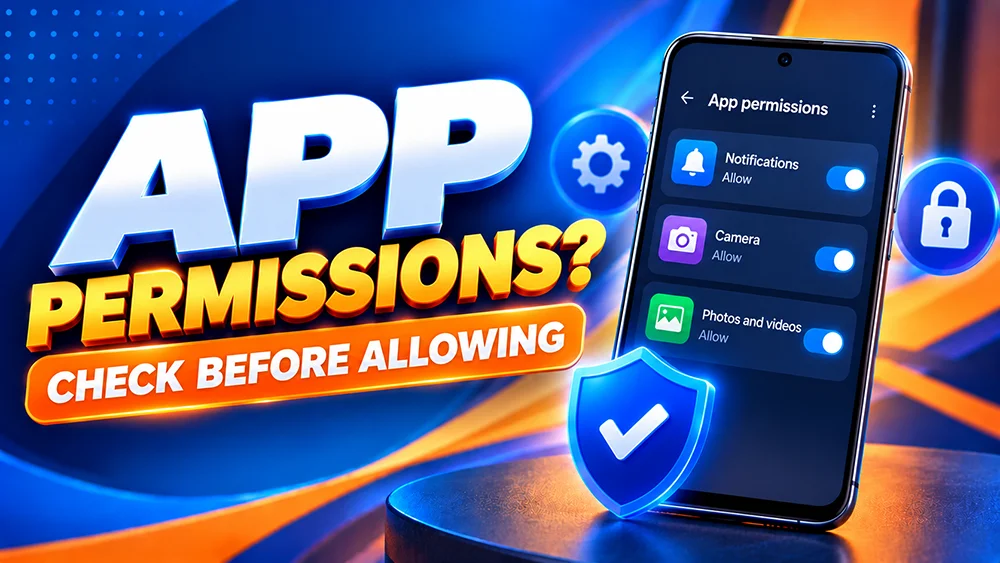
Installing an Android APK and seeing a permission request can raise a fair question: does the app really need access to that part of your phone? You do not have to approve every prompt just to continue.
This guide shows how to review and change permissions after installation. These are general Android examples, not a confirmed list of OKGames app permissions.
Check the Permissions Your Phone Actually Shows
On most Android phones, open Settings → Apps → OKGames → Permissions. If the name differs, check the installed package information.
Review Allowed and Not allowed permissions. Menu names differ by device.
Important: Permissions may differ between APK releases. Trust what your phone actually displays.
What Do Common Android Permissions Mean?
Android uses permissions to control access to device information and functions. These examples explain what a request could mean, not what OKGames necessarily asks for:
- Notifications: Allows an app to display alerts. You can usually change this without removing the app.
- Photos and videos: Provides access to selected media or, depending on the prompt, a broader media collection. Consider whether the feature you are using actually needs it.
- Camera: Allows camera use, which should have a clear purpose before you approve it.
- Location or contacts: Can expose personal information. Question requests that do not relate to a feature you intentionally opened.
- SMS, accessibility, or device-administrator access: These can be particularly sensitive. Do not grant powerful access without a clear, verified explanation.
A prompt alone does not prove an app is unsafe; review it before approving.
Is “Allow From This Source” an OKGames Permission?
No. This is an Android installation setting for the browser or file manager that opens an APK. It is different from permissions the installed app may request later.
You can turn that installation access off afterwards:
- Open Settings → Apps → Special app access.
- Choose Install unknown apps.
- Open the browser or file manager you used.
- Turn off Allow from this source.
Do not disable Play Protect, ignore a harmful-app warning, or change restricted security settings to force an unverified APK to install.
For the download entry and general steps, use our OKGames App Guide.
How to Change Notifications or Remove Access
For notification controls, try Settings → Notifications → App notifications, then select the installed app if it appears. You may be able to turn alerts on or off or adjust individual categories.
For camera, media, or other permissions, return to Settings → Apps → [app name] → Permissions and choose the access level you prefer.
If Android offers Allow only while using the app or Ask every time, consider those options where appropriate.
If a feature stops working, check whether it needs the denied permission before granting broader access.
What If the APK Will Not Install or Open?
Keep the problem separate from permission management.
An “App not installed” message belongs in our APK installation troubleshooting guide.
An app that already installed but crashes after an update belongs in our Android launch troubleshooting guide.
If an unfamiliar permission appears after an update, verify the app source first. The mobile website also works without an APK.
OKGames App Permissions FAQ
Must I allow every permission to use the app?
No. Review each prompt in context. Some optional features may not work without their relevant permission, but that does not mean every request should be approved.
Will turning off notifications delete my account?
No. Turning off Android notifications changes how alerts appear on your device; it does not delete an online account.
Should I leave “Allow from this source” enabled?
Not if you no longer need that browser or file manager to install APKs. You can turn it off in Android’s special app-access settings.
Bottom line: Check the permissions your phone actually shows, allow only what you understand, and keep Android’s security protections enabled. Use gaming services responsibly and only where legally permitted.